
Pretty Terminal Transport Server Bun

The Pretty Terminal Transport provides interactivity and pretty printing for your logs in the terminal. It has interactive browsing, text search, detailed viewing for large logs, and themes.
Using Next.js or LogLayer in a browser?
This transport has dependencies that are not supported in Next.js or a browser. Use the Simple Pretty Terminal instead.
Running multiple applications concurrently?
This transport has interactive features that are designed for a single app. If you are running multiple apps concurrently in the same terminal, then it is recommended you use the the Simple Pretty Terminal instead.
Features
- 🔍 Interactive Selection Mode - Browse and inspect logs in a full-screen interactive view
- 📝 Detailed Log Inspection - Examine individual log entries with formatted data and context
- 🔎 Search/Filter Functionality - Find specific logs with powerful filtering capabilities
- 💅 JSON Pretty Printing - Beautifully formatted structured data with syntax highlighting
- 🎭 Configurable Themes - Choose from pre-built themes or customize your own colors
Installation
Compatbility Note
Pretty Terminal has only been tested in MacOS with the native Terminal app and Warp, and on Ubuntu with the native terminal. It may not work as expected in other terminal emulators or operating systems.
Node.js
npm install loglayer @loglayer/transport-pretty-terminal serialize-error better-sqlite3pnpm add loglayer @loglayer/transport-pretty-terminal serialize-error better-sqlite3yarn add loglayer @loglayer/transport-pretty-terminal serialize-error better-sqlite3Bun
Bun has a built-in SQLite module, so better-sqlite3 is not needed. Pass a bun:sqlite Database instance via the database option — see Custom SQLite instance.
npm install loglayer @loglayer/transport-pretty-terminal serialize-errorpnpm add loglayer @loglayer/transport-pretty-terminal serialize-erroryarn add loglayer @loglayer/transport-pretty-terminal serialize-errorbun add loglayer @loglayer/transport-pretty-terminal serialize-errorBasic Usage
Development Only
Pretty Terminal is designed to work in a terminal only for local development. It should not be used for production environments.
It is recommended that you disable other transports when using Pretty Terminal to avoid duplicate log output.
Single-Instance Only
Because Pretty Terminal is an interactive transport, it may not work well if you run multiple applications in the same terminal window that share the same output stream.
If you need to run multiple applications that use Pretty Terminal in the same terminal window, you can:
- Use the
disableInteractiveModeoption to disable keyboard input and navigation features - Keep interactive mode enabled in only one application and disable it in others
- Use the Simple Pretty Terminal instead.
The transport is designed to work as a single interactive instance. getPrettyTerminal() can be safely used multiple times in the same application as it uses the same transport reference.
Performance Note
For long-running applications or large log volumes, pass a file-backed database instead of an in-memory one to avoid memory issues (e.g. new Database('logs.sqlite')).
Security Note
If using a file-backed database, be aware that:
- All logs will be stored in the specified SQLite database file.
- The table is purged and recreated when the transport initializes.
- It is recommended to add the database file path to your
.gitignoreto avoid committing sensitive log data. - Do not point two separate applications at the same database file to avoid data corruption.
If you have sensitive data that shouldn't be logged at all, use the Redaction Plugin to filter it out before it reaches the transport.
Node.js
import Database from 'better-sqlite3';
import { LogLayer, ConsoleTransport } from 'loglayer';
import { getPrettyTerminal } from '@loglayer/transport-pretty-terminal';
import { serializeError } from 'serialize-error';

const log = new LogLayer({
  errorSerializer: serializeError,
  transport: [
    new ConsoleTransport({
      // Use console logging in non-development environments
      enabled: process.env.NODE_ENV !== 'development',
    }),
    getPrettyTerminal({
      database: new Database(':memory:'),
      // Only enable Pretty Terminal in development
      enabled: process.env.NODE_ENV === 'development',
    }),
  ],
});

log.withMetadata({ foo: 'bar' }).info('Hello from Pretty Terminal!');
Bun
Bun ships with a built-in SQLite module, so no extra package is needed:
import { Database } from 'bun:sqlite';
import { LogLayer, ConsoleTransport } from 'loglayer';
import { getPrettyTerminal } from '@loglayer/transport-pretty-terminal';
import { serializeError } from 'serialize-error';

const log = new LogLayer({
  errorSerializer: serializeError,
  transport: [
    new ConsoleTransport({
      // Use console logging in non-development environments
      enabled: process.env.NODE_ENV !== 'development',
    }),
    getPrettyTerminal({
      database: new Database(':memory:'),
      // Only enable Pretty Terminal in development
      enabled: process.env.NODE_ENV === 'development',
    }),
  ],
});

log.withMetadata({ foo: 'bar' }).info('Hello from Pretty Terminal!');
Keyboard Controls
The Pretty Terminal Transport provides an interactive interface with three main modes:
Simple View (Default)
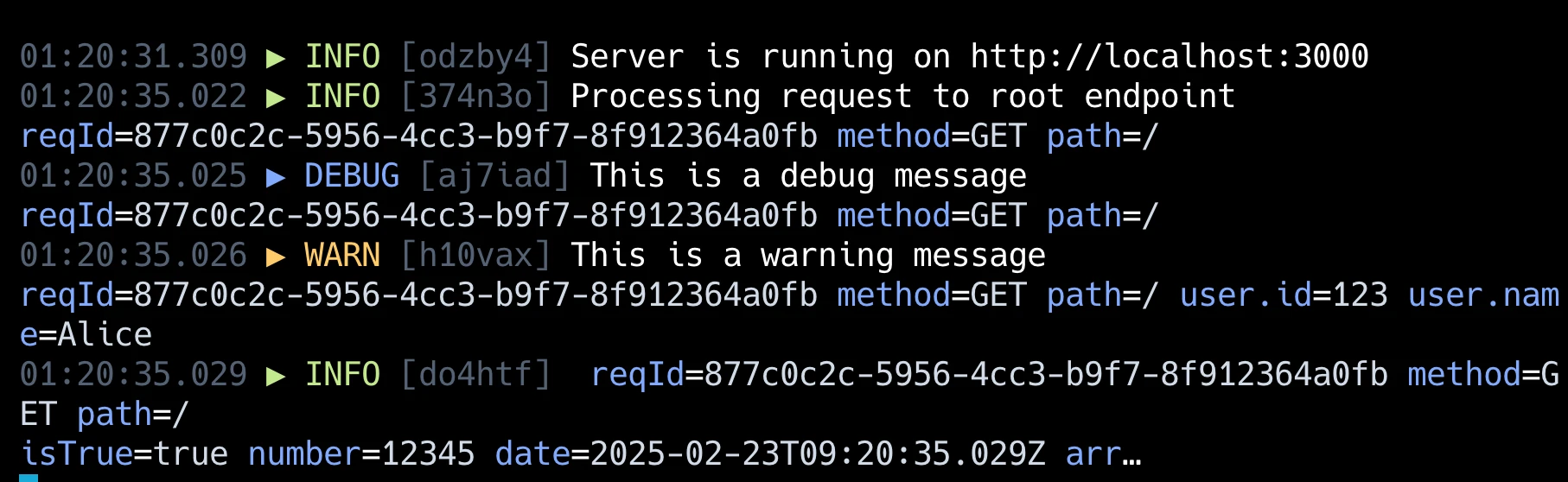
The default view shows real-time log output with the following controls:
P: Toggle pause/resume of log outputC: Cycle through view modes (full → truncated → condensed)↑/↓: Enter selection mode
When paused, new logs are buffered and a counter shows how many logs are waiting. Resuming will display all buffered logs.
The view has three modes:
- Full View (default): Shows all information with complete data structures (no truncation)
- Truncated View: Shows complete log information including timestamp, ID, level, message, with data structures truncated based on
maxInlineDepthandmaxInlineLengthsettings - Condensed View: Shows only the timestamp, log level and message for a cleaner output (no data shown)
When entering selection mode while paused:
- Only logs that were visible before pause are shown initially
- Buffered logs from pause are tracked as new logs
- The notification shows how many new logs are available
- Pressing ↓ at the bottom will reveal new logs
Selection Mode
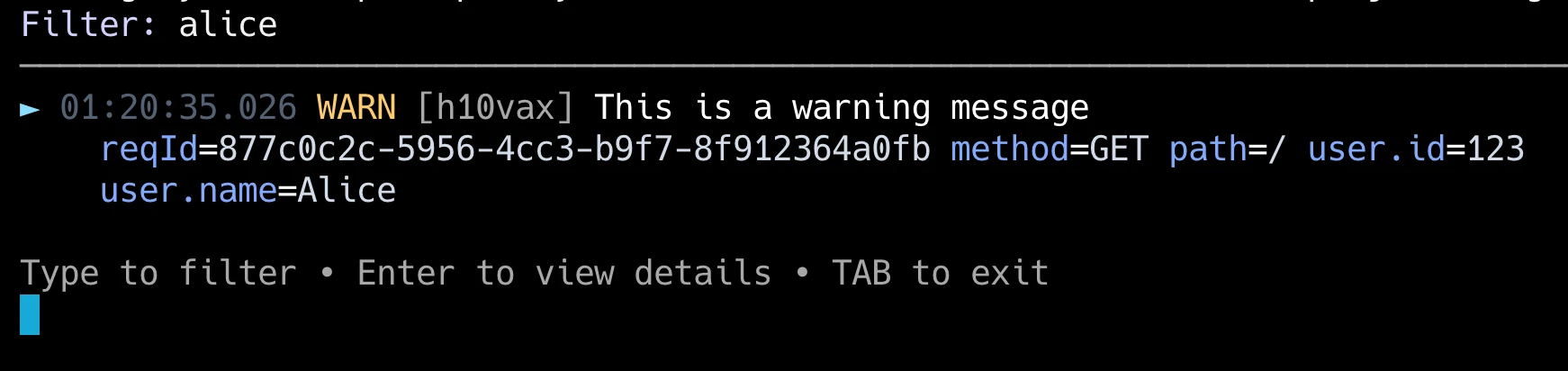
An interactive mode for browsing and filtering logs:
↑/↓: Navigate through logsENTER: View detailed log information (preserves current filter)TAB: Return to simple view- Type to filter logs (searches through all log content)
BACKSPACE: Edit/clear filter text
When filtering is active:
- Only matching logs are displayed
- The filter persists when entering detail view
- Navigation (↑/↓) only moves through filtered results
- New logs that match the filter are automatically included
Each log entry in selection mode shows:
- Timestamp and log ID
- Log level with color coding
- Complete message
- Full structured data inline (like simple view's full mode)
- Selected entry is highlighted with
►
Detail View
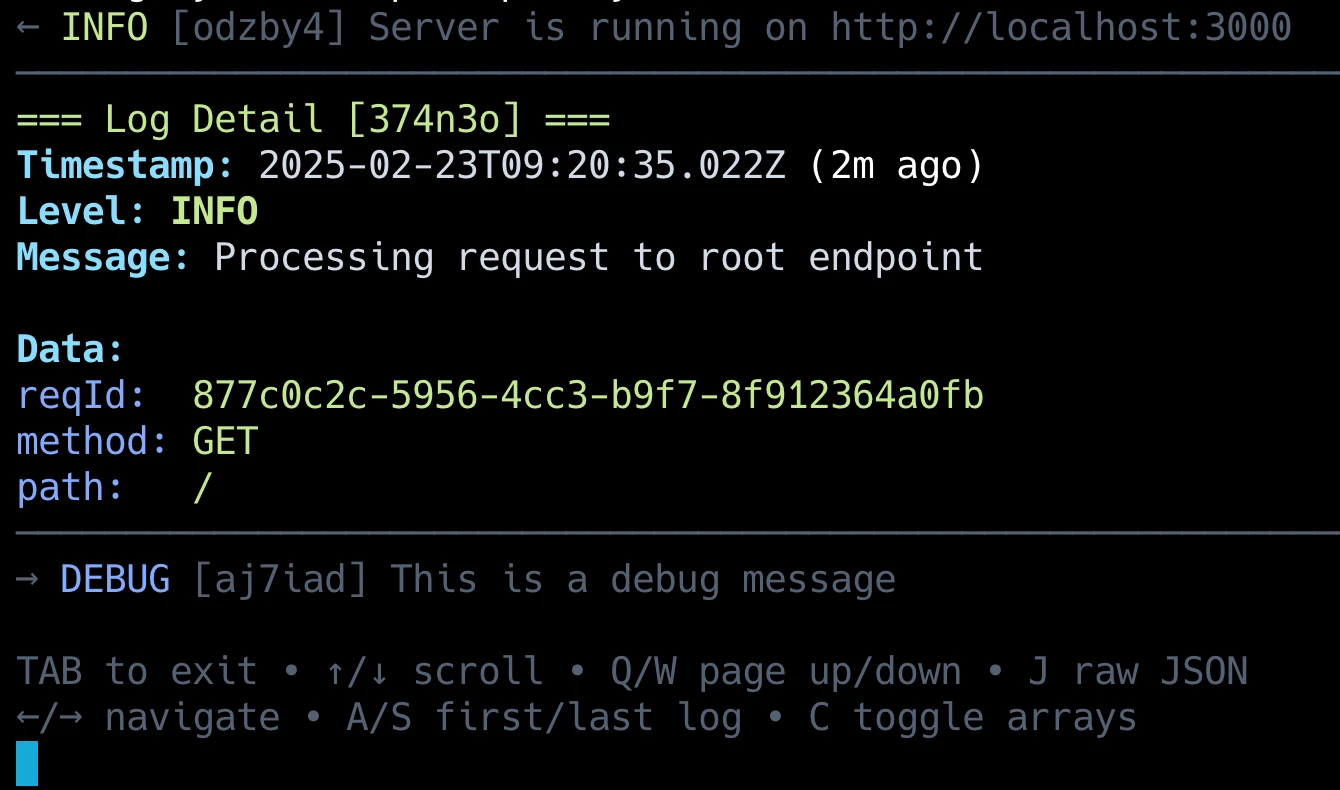
A full-screen view showing comprehensive log information:
↑/↓: Scroll through log content line by lineQ/W: Page up/down through content←/→: Navigate to previous/next log entry (respects active filter)A/S: Jump to first/last log entryC: Toggle array collapse in JSON dataJ: Toggle raw JSON view (for easy copying)TAB: Return to selection view (or return to detail view from JSON view)
Features in Detail View:
- Shows full timestamp and log level
- Displays complete structured data with syntax highlighting
- Shows context (previous and next log entries)
- Shows active filter in header when filtering is enabled
- Auto-updates when viewing latest log (respects current filter)
- Pretty-prints JSON data with color coding
- Collapsible arrays for better readability
- Raw JSON view for easy copying
Configuration Options
The Pretty Terminal Transport can be customized with various options:
import Database from 'better-sqlite3';
import { getPrettyTerminal, moonlight } from '@loglayer/transport-pretty-terminal';

const transport = getPrettyTerminal({
  // Required: provide your own SQLite instance
  database: new Database(':memory:'),

  // Maximum depth for inline data display in truncated mode
  maxInlineDepth: 4,

  // Maximum length for inline data in truncated mode
  maxInlineLength: 120,

  // Custom theme configuration (default is moonlight)
  theme: moonlight,

  // Enable/disable the transport (defaults to true)
  enabled: process.env.NODE_ENV === 'development',

  // Disable interactive mode for multi-app terminal output (defaults to false)
  disableInteractiveMode: false,
});
Required Parameters
| Name | Type | Description |
|---|---|---|
database | SqliteDatabaseInstance | SQLite database instance. See Node.js / Bun for examples |
Optional Parameters
| Name | Type | Default | Description |
|---|---|---|---|
maxInlineDepth | number | 4 | Maximum depth for displaying nested data inline. Only applies in truncated view mode. Selection mode and detail view always show full depth |
maxInlineLength | number | 120 | Maximum length for inline data before truncating. Only applies in truncated view mode. Selection mode and detail view always show full content |
theme | PrettyTerminalTheme | moonlight | Theme configuration for colors and styling |
database | SqliteDatabaseInstance | — | Required. SQLite database instance to use for log storage. Accepts any synchronous SQLite binding that implements exec, prepare, and close (e.g. better-sqlite3, bun:sqlite) |
enabled | boolean | true | Whether the transport is enabled. If false, all operations will no-op |
disableInteractiveMode | boolean | false | Whether to disable interactive mode (keyboard input and navigation). Useful when multiple applications need to print to the same terminal |
Themes
The transport comes with several built-in themes to match your terminal style:
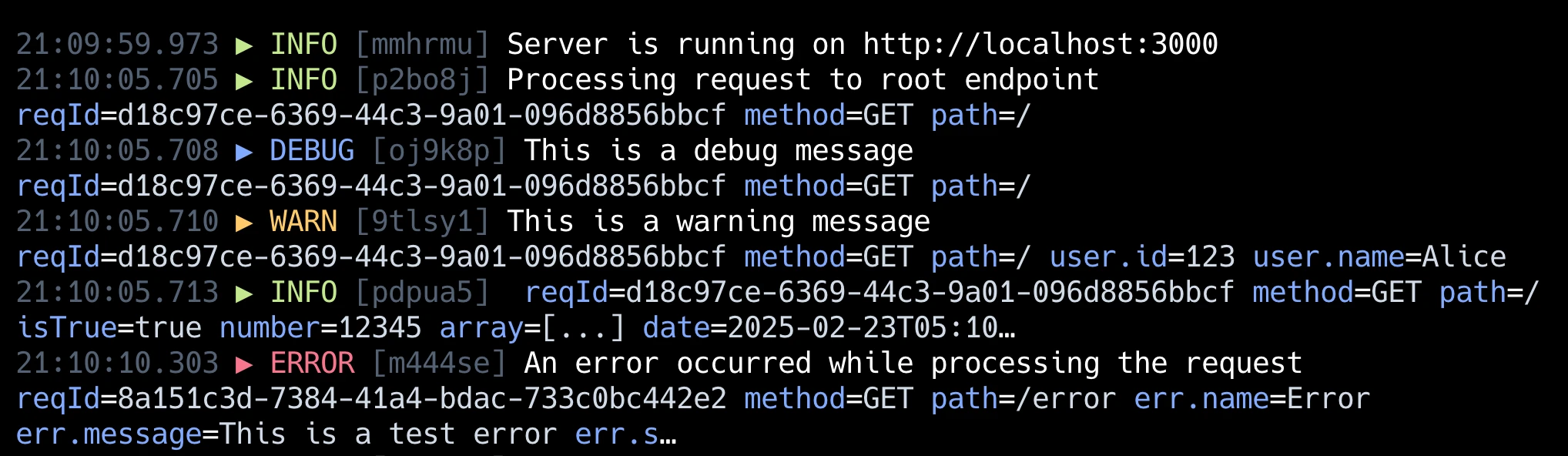
Moonlight Theme (Default)
A dark theme with cool blue tones, perfect for night-time coding sessions and modern IDEs.
import { getPrettyTerminal, moonlight } from '@loglayer/transport-pretty-terminal';

const transport = getPrettyTerminal({
  theme: moonlight,
});
Sunlight Theme
A light theme with warm tones, ideal for daytime use, high-glare environments, and printed documentation.
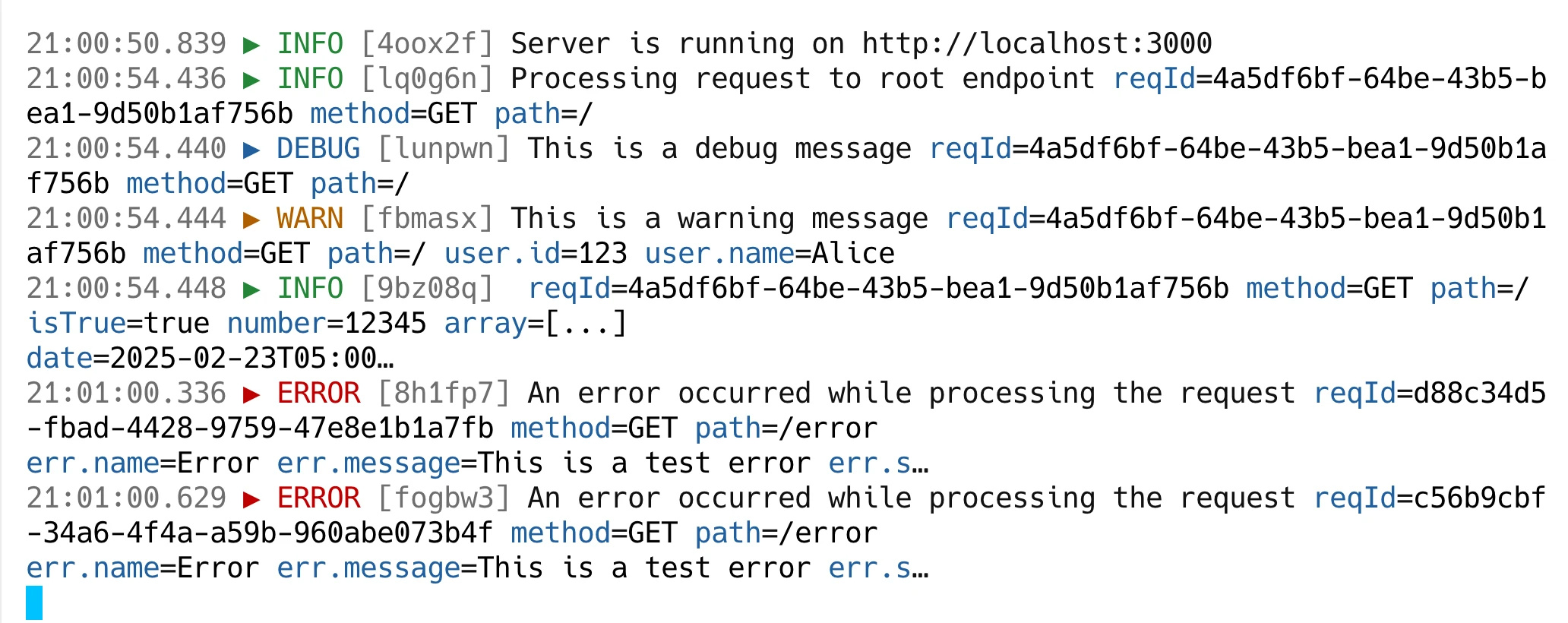
import { getPrettyTerminal, sunlight } from '@loglayer/transport-pretty-terminal';

const transport = getPrettyTerminal({
  theme: sunlight,
});
Neon Theme
A vibrant, cyberpunk-inspired theme with electric colors and high contrast, perfect for modern tech-focused applications.
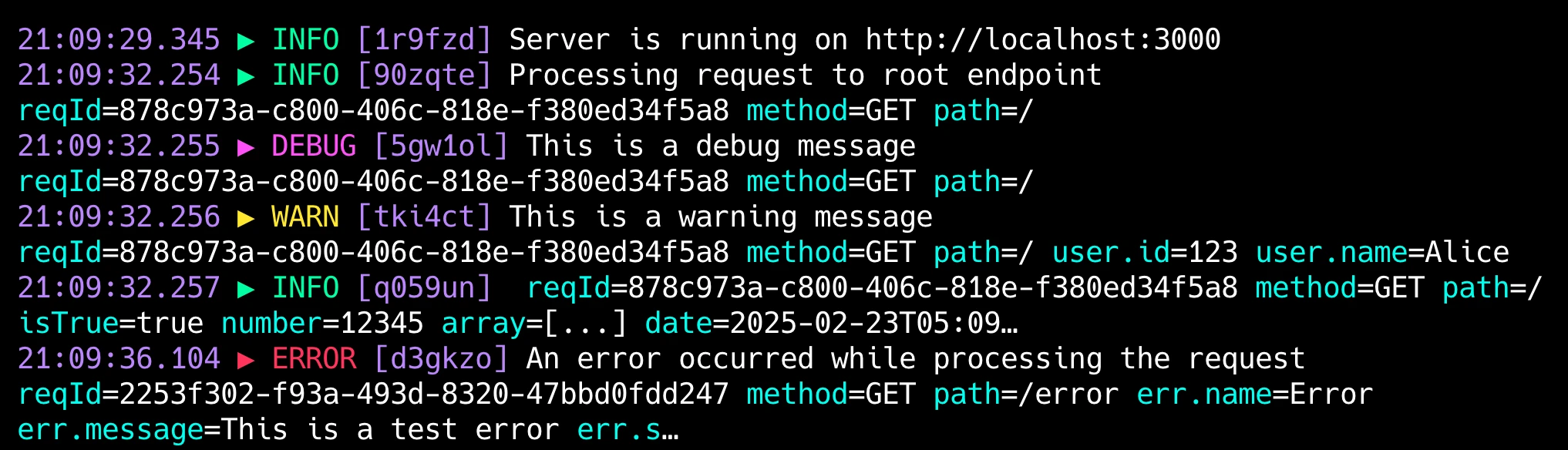
import { getPrettyTerminal, neon } from '@loglayer/transport-pretty-terminal';

const transport = getPrettyTerminal({
  theme: neon,
});
Nature Theme
A light theme with organic, earthy colors inspired by forest landscapes. Great for nature-inspired interfaces and applications focusing on readability.
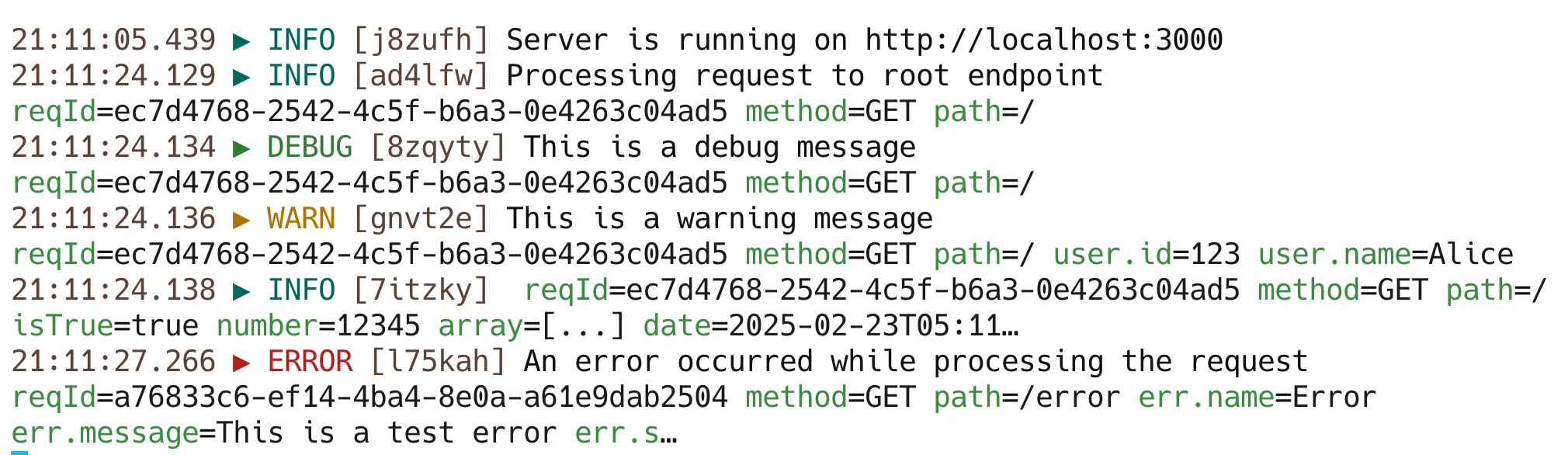
import { getPrettyTerminal, nature } from '@loglayer/transport-pretty-terminal';

const transport = getPrettyTerminal({
  theme: nature,
});
Pastel Theme
A soft, calming theme with gentle colors inspired by watercolor paintings. Perfect for long coding sessions and reduced visual stress.
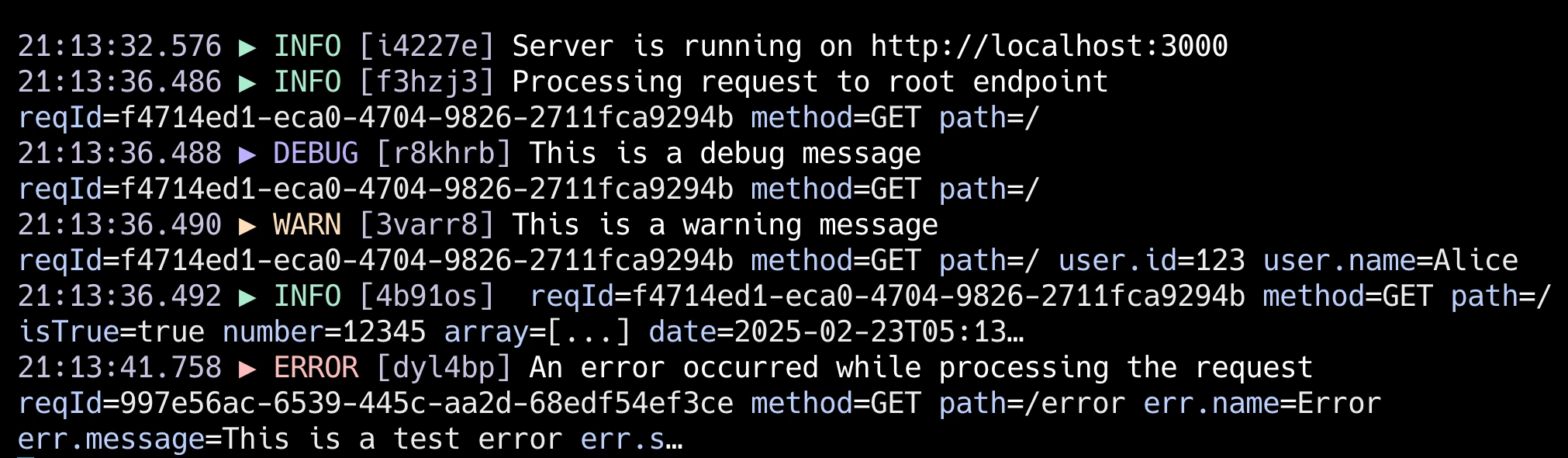
import { getPrettyTerminal, pastel } from '@loglayer/transport-pretty-terminal';

const transport = getPrettyTerminal({
  theme: pastel,
});
Custom Themes
You can create your own theme by implementing the PrettyTerminalTheme interface, which uses chalk for color styling:
import { getPrettyTerminal, chalk } from '@loglayer/transport-pretty-terminal';

const myCustomTheme = {
  // Configuration for the default log view shown in real-time
  simpleView: {
    // Color configuration for different log levels
    colors: {
      trace: chalk.gray,    // Style for trace level logs
      debug: chalk.blue,    // Style for debug level logs
      info: chalk.green,    // Style for info level logs
      warn: chalk.yellow,   // Style for warning level logs
      error: chalk.red,     // Style for error level logs
      fatal: chalk.bgRed.white,  // Style for fatal level logs - background red with white text
    },
    logIdColor: chalk.dim,      // Style for the unique log identifier
    dataValueColor: chalk.white, // Style for the actual values in structured data
    dataKeyColor: chalk.dim,     // Style for the keys/property names in structured data
    selectorColor: chalk.cyan,   // Style for the selection indicator (►) in selection mode
  },
  detailedView: {
    // Inherits all options from simpleView, plus additional detailed view options
    colors: {
      trace: chalk.gray,
      debug: chalk.blue,
      info: chalk.green,
      warn: chalk.yellow,
      error: chalk.red,
      fatal: chalk.bgRed.white,
    },
    logIdColor: chalk.dim,
    dataValueColor: chalk.white,
    dataKeyColor: chalk.dim,

    // Additional detailed view specific options
    headerColor: chalk.bold.cyan,     // Style for section headers
    labelColor: chalk.bold,           // Style for field labels (e.g., "Timestamp:", "Level:")
    separatorColor: chalk.dim,        // Style for visual separators

    // Configuration for JSON pretty printing
    jsonColors: {
      keysColor: chalk.dim,           // Style for JSON property names
      dashColor: chalk.dim,           // Style for array item dashes
      numberColor: chalk.yellow,      // Style for numeric values
      stringColor: chalk.green,       // Style for string values
      multilineStringColor: chalk.green, // Style for multiline strings
      positiveNumberColor: chalk.yellow, // Style for positive numbers
      negativeNumberColor: chalk.red,    // Style for negative numbers
      booleanColor: chalk.cyan,         // Style for boolean values
      nullUndefinedColor: chalk.gray,   // Style for null/undefined values
      dateColor: chalk.magenta,         // Style for date values
    },
  },
};

const transport = getPrettyTerminal({
  theme: myCustomTheme,
});
Migration
v5 → v6
database is now a required config option. logFile has been removed.
Previously the transport managed its own SQLite database internally. Starting in v6 you must create and pass the database instance yourself. This removes better-sqlite3 as a dependency entirely.
import Database from 'better-sqlite3';
import { getPrettyTerminal } from '@loglayer/transport-pretty-terminal';

// Before
const transport = getPrettyTerminal({ logFile: 'logs.sqlite' });

// After
const transport = getPrettyTerminal({ database: new Database('logs.sqlite') });import { Database } from 'bun:sqlite';
import { getPrettyTerminal } from '@loglayer/transport-pretty-terminal';
// Before (not supported)
// After
const transport = getPrettyTerminal({ database: new Database(':memory:') });